
How to manage your disk usage with our Disk Usage Beta tool
Actively managing your disk usage will help you avoid unnecessary over-usage costs. Our new Disk Usage Beta tool provides an overview of your account and helps you determine if you’re exceeding the quota for your hosting package. It also includes a summary of how the disk space is divided between your web files, email and other files — depicted in a colour-coded bar.
To access the Disk Usage Beta tool:
- Browse to konsoleH and log in at Admin or Domain level
- If Admin level: Select or search for a domain name in the Hosting Service tab
- Click Statistics & Reports, then select Disk Usage under reports
- Click on Disk Usage Beta

- A summary your disk space will appear, divided by web files, email and other files depicted in a colour-coded bar

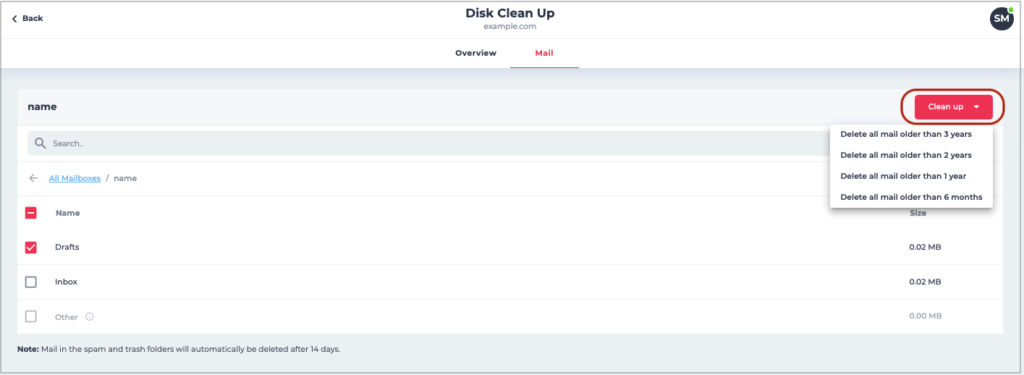
- Select the mail tab — your mailboxes will be sorted from biggest to smallest by default. Use the search bar to search for a specific mailbox. From there, you can drill down into folders within a mailbox. No individual emails will be visible, only the folder(s) and size of the folder(s) within the mailbox will be shown.
- Normally, the main cause of excessive disk usage is email which is why we’ve included the option to bulk delete email for a specific time frame. To do so, select the relevant mailbox and click Clean up. From the drop-down menu, select the applicable time period.
Posted in Control Panel